Undo
Ctrl+Z and Cmd+Z undo. Ctrl+Shift+Z, Cmd+Shift+Z, and Ctrl+Y or Cmd+Y redo.
Each open project has its own history. Undo uses that history immediately, in the current visit. Harnice also keeps a copy so that the next time you open the project, you can still take those changes back. The lists remember up to 80 changes. When another one is added, the oldest is forgotten. That limit keeps a long session from holding every edit you have ever made.
The two lists
The undo list holds changes you can still take back. The redo list holds changes you just took back and can put forward again. A new change clears the redo list, because those undone changes no longer follow from the work you just did.
There are four situations, depending on whether each list is empty. An edit always finishes in "You can undo," and it clears the redo list. Undo walks you toward a redo list. When the last change leaves the undo list, only Redo is left. Redo walks you back. When the last undone change is put forward again, the redo list is empty.
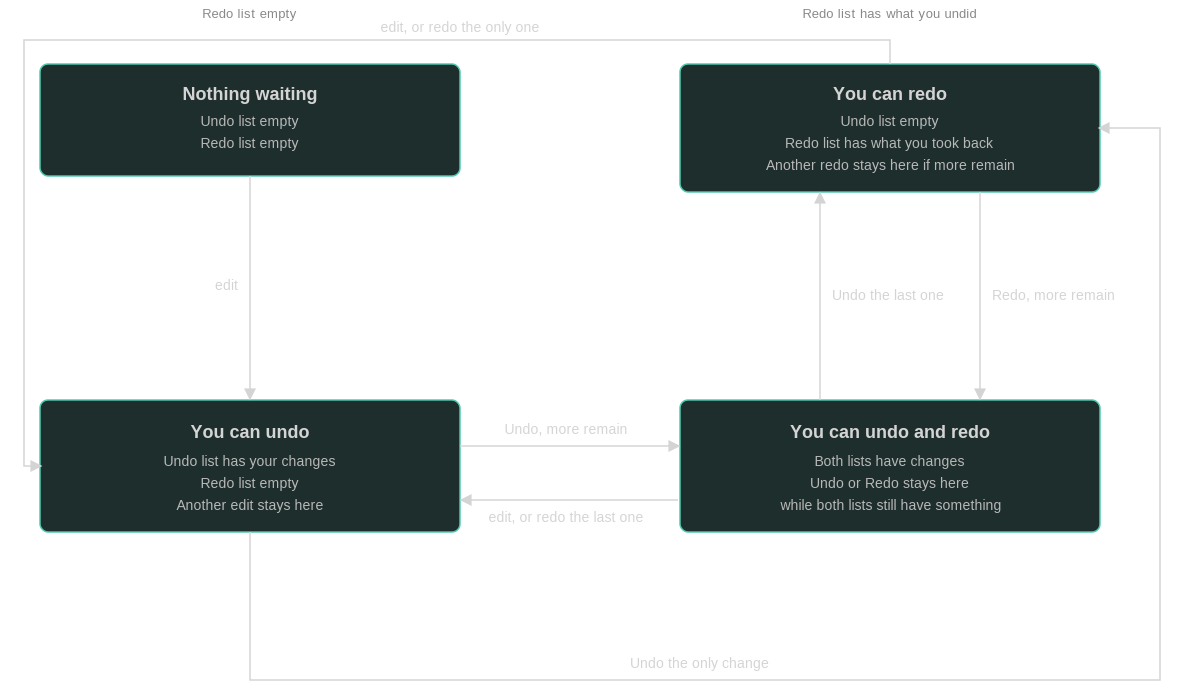
Undo puts the earlier work back. Redo puts the later work back. If Harnice cannot put that work back, the change stays on the list it was already on, and the project stays as it was before the keypress.
Typing is grouped. Keystrokes within about half a second of each other stay with the change you are still making. The first Undo takes back only that unfinished typing. The earlier change stays on the undo list until the next Undo. The grouping exists so one keypress does not peel the file back one character at a time.
What a change remembers
Each change remembers enough to put the work back, and enough to put it forward again. It remembers the design, not the highlights drawn on top of the design.
| You changed | Undo puts back |
|---|---|
| The block diagram | The drawing, what was selected, mating names you were in the middle of typing, and where the sheet was framed |
| A block-diagram symbol or a subsystem symbol | The symbol, what was selected, and where the sheet was framed |
| Text | The text and the cursor, in the file you were editing |
| A PDF drawing | That page of the drawing |
| A mate on the physical model | The mates as they were |
| Which page of the project you were on | That page, including an instance and the document open inside it |
A diagram change remembers the drawing itself. Junction dots, corner boxes, labels along a wire, the rubber-band preview, and the handles you drag are left out. They are drawn again from the wires when the sheet comes back, so undo does not have to freeze a highlight that was only there for the current gesture.
Moving around the sheet does not become a change. Panning, zooming, and dragging a selection box do not change the design, so they are not something Undo takes back. Harnice still remembers which page you were on and where that page was scrolled or framed, so opening the project again puts you back in the same place. Coming back to that view is not an Undo.
A burst of diagram work that is really one gesture becomes one change. A follow-on cleanup that happens because of that gesture is part of the same change, so Undo does not stop halfway through it. Drawing a new harness segment is one change of its own, including a segment that does not recalculate the rest of the sheet. The segment is the thing you meant to add. The rest of the sheet was already there.
Placing a device that still shows a #REFDES placeholder can be undone during this visit. That placement is not part of the saved diagram, because the device does not have its real name yet.
In the console, the block diagram, the symbol editor, and the PDF drawings share this one history. Undo means the same thing on each of them. An editor opened on its own, outside the console, remembers about 50 diagram changes for that visit only. Those changes are not kept for the next time you open the project, because that visit is not the project's shared history.
Pages and the back buttons
Choosing another page of the open project is a change on the undo list. The drawing and the files stay as they are. Undo and Redo put you back on the page you had open, including an instance and the document you had open inside it. A banner then says that this undo or redo moved you to an earlier or later view and left the content alone. The banner stays up for a few seconds.
The step is added when you pick a page, open an instance, or pick a document inside an instance. It is also added when Back or Forward lands on a different page of this same project. Staying on the same page is the same place. Scrolling it, panning it, or switching that page between Edit and Analyze does not add a step.
Analyze is skipped. Undo still returns to the page you had open before Analyze. Opening Analyze, and coming back from Analyze to that same page, adds no step. If you leave Analyze for some other page, the step runs from the page you had before Analyze to that other page. Settings are skipped. Opening settings and leaving settings add no undo step. Opening a different project adds no step on the project you are leaving. That project's history stays with it.
The back and forward buttons are at the top of the page list. Back is also Alt+Left. Forward is also Alt+Right. They stay quiet while you are typing in a field. Each button names the place it will open. They walk places you have already visited: pages of a project, instances, settings, and other projects. The next time you open Harnice, Back can still return to those places. The trail keeps the last 100, so a long stretch of browsing does not keep every stop.
Back and Forward keep their own trail. Visiting a new place clears the places Forward would open, the same way a new edit clears the redo list. Undo leaves this trail where it is. After Back moves you between two pages of the same project, that Back is itself a page change. The next Undo returns you to the page you left, and the banner appears. Forward still points at that page, because Back already placed it on the forward trail.
When the history is kept for next time
The history is ready for Undo as soon as you make the change. The copy that survives closing the project waits, unless you are about to leave.
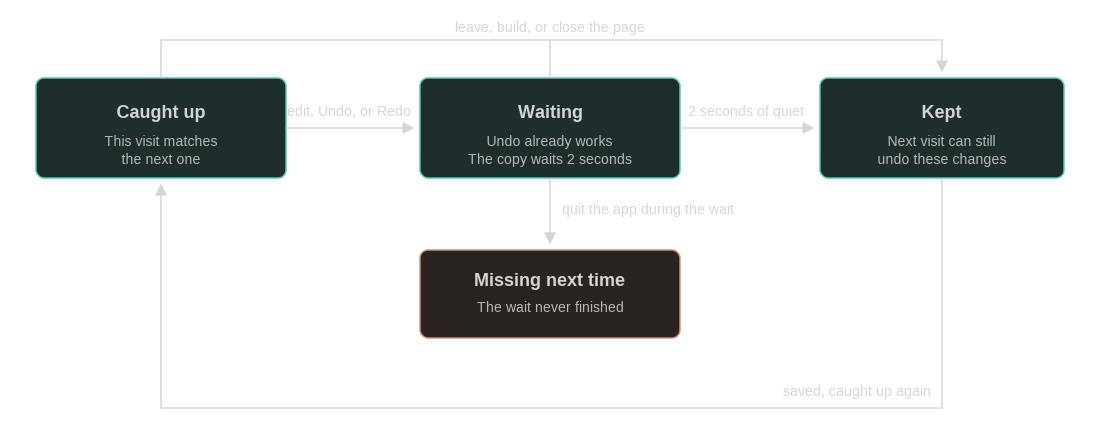
Each new edit, Undo, or Redo starts the two seconds over. A burst of changes becomes one saved history, as the lists stand when you pause. The wait is there so Harnice is not saving the whole history on every keystroke while you are still working.
Harnice does not wait when the visit is about to end:
- You switch projects, or you clear the open project. The history of the project you are leaving is kept first, then the next project's history is loaded.
- You leave the physical-model page.
- A build is about to start. The build should see the mates you just edited, and the history of those edits should already be kept.
- You close the page.
Closing the page tries to keep the history before the page is gone. That can finish only while Harnice is still running. Quitting the app during the two-second wait can take the process with it before the save finishes. Undo still works until the app is gone. The next time you open the project, the changes from that unfinished wait may be missing.
A pull drops the history
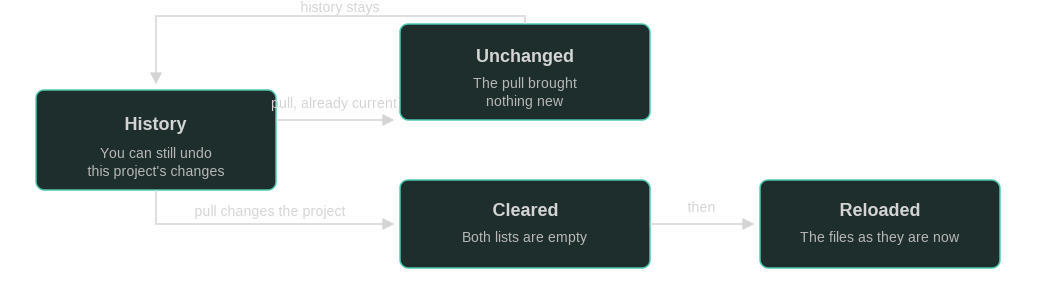
A pull can replace the project with other people's work. Undo would otherwise try to put back a drawing or a file that no longer matches what is on disk. When a pull actually brings in changes, both lists are cleared and the project is loaded again from the files. A pull that was already up to date leaves the history alone.